
PowerPoint presentations are commonly used for business reports, lectures, project proposals, and training materials. However, when sharing across different devices, platforms, or clients, PowerPoint files often encounter compatibility issues, such as font changes, layout problems, and animations not displaying correctly. Therefore, many people prefer to save PowerPoints as PDFs—this format ensures that everyone sees the same content and prevents accidental modifications.
This article explains how to easily save PowerPoints as PDFs, focusing on how JOPDF makes the process faster, simpler, and more reliable.
Why Convert PowerPoint to PDF?
Before delving into conversion methods, we first need to understand why converting PPT to PDF is a wise choice:
Universal Compatibility–PDFs display perfectly on any device.
Format Preservation–No layout errors or missing fonts.
Professional Presentation–The output document is clear and aesthetically pleasing.
File Security–PDF files can be encrypted and access restricted.
Smaller File Size–Easy to store and share.
Therefore, converting PowerPoint to PDF has become a standard step in professional workflows.
What is JOPDF?
JOPDF is a powerful PDF management tool suitable for individuals, teams, and companies. It can help you:
* Convert between PDF and Office files
* Edit PDFs, add annotations, and manage PDF pages
* Compress PDFs to reduce file size
* Encrypt and set permissions
Batch process large numbers of PDF files
Unlike ordinary converters, JOPDF prioritizes accuracy, speed, and conversion quality, making it excellent for converting PPTs to PDFs.
How to Save PowerPoint as PDF Using JOPDF?
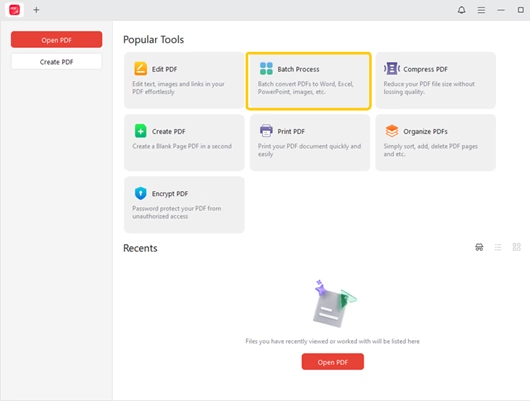
Step 1: Launch JOPDF and Select the Conversion Tool
Open JOPDF and select the “Batch Process” function from the main interface.
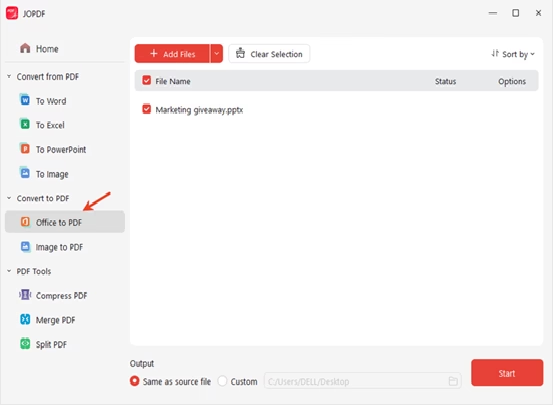
Step 2: Click “Office to PDF.”
Add your PowerPoint file (PPT or PPTX). JOPDF supports batch uploads, so you can convert multiple presentations at once.
Step 3: Convert Now
Click “Convert,” and JOPDF will process your file in seconds. Its advanced engine preserves animations as static visual elements, keeps all fonts intact, and maintains perfect slide alignment.

Step 5: Save and Share
Download the converted PDF file and share it with confidence. The document displays exactly the same on all devices and platforms.
JOPDF’s Advanced Conversion Features
JOPDF is more than just a simple converter; it offers many more useful tools:
Batch Conversion
Convert dozens or even hundreds of PowerPoint files at once—perfect for company teams and teachers.
Offline Support
Use JOPDF anytime, anywhere, without worrying about network speed or data security.
Built-in PDF Editing Functionality
After conversion, you can directly edit, add annotations, compress, or protect your PDF files within JOPDF.
Security Settings
You can add passwords, restrict editing, and add watermarks to protect important presentations.
Other Methods to Save PowerPoint as PDF
While JOPDF is the most professional choice, here are some other methods:
Microsoft PowerPoint’s Built-in Export Function
PowerPoint can directly export slides as PDF. However, it offers limited editing capabilities, and the exported file can be quite large.
Online Conversion Tools
Many free websites can convert PPTs to PDF, but they usually have file size limitations, and may introduce watermarks, privacy issues, and the format may not be stable.
Print to PDF Option
The system’s built-in print function can also generate PDFs, but this method offers limited control over layout, compression, and quality.
While these methods work in simple situations, they fall short for professional-level results, making JOPDF a better choice.
Why choose JOPDF over other converters?
Because JOPDF performs better than most converters. It can:
* Achieve industry-standard conversion accuracy
* Processing speed is fast
* Prevent format loss
* Flexible batch processing
* One platform handles all PDF tools
Whether you’re creating business reports, academic presentations, marketing plans, or training manuals, JOPDF ensures flawless conversions every time.
In summary
Learning to easily convert PPT to PDF can significantly improve your efficiency and document quality. While many tools are available, JOPDF is likely the most reliable, fastest, and most professional choice for converting PPT to PDF.
With JOPDF, your presentations retain their original layout, clarity, and structure while enjoying all the benefits of the universal PDF format. If you value document management and presentation quality, JOPDF is a trustworthy tool.


Leave a Comment
You must be logged in to post a comment.